

Reference Dimensions is a feature introduced in the 22.09 release that allows you to load in data from external sources to be used for.. you guessed it… reference for other data. Common examples would be assigning employee names as owners of a department, or tagging a location code on a cost center.
The best part, is this Reference Dimension data does not count towards your EDM record-based licensing if you set it up correctly. There are a few criteria to keep in mind:
- This does not allow you to manage the data in EDM – meaning you aren’t authoring this data, properties, or relationships and sending it to other systems.
- The reference dimension data is limited to a set of generic pre-defined properties/attributes. You can’t add or remove any of the attributes from the reference data.
- You can load reference dimension data via a request file or manual changes and pull reference data out via an Extract, but cannot use the native Import/Export functionality.
More on the reasoning behind these later in the post. But in general, Reference Dimensions allow you to make connections of your managed dimensions to other data sets in your organization without increasing your licensing.
Setting Up A Reference Dimension
In my example, I’ve registered an Oracle Cloud Financials Adapter to manage my Cost Center segment. When I register this adapter, it created 2 viewpoints for Cost Center – one for the segment values (List Viewpoint) and one for managing my tree (Hierarchy Viewpoint). This example, I only have one tree for my Cost Centers, but you can have multiple or no trees, so the number of Hierarchy Viewpoints is variable.

The hierarchy, shown here, shows my Cost Centers for HyperionBarbie Financials ERP. Next, I want to create a Reference Dimension to assign one of my employees to each Level 0 Cost Center.
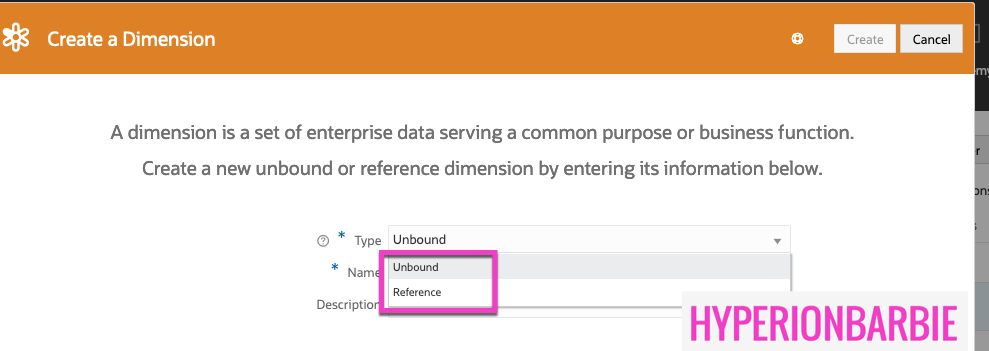
On the HyperionBarbie Financials Application, I inspect and go to the “Dimensions” tab and press “Create“. This is going to give me an option to create either an Unbound or Reference dimension. I create a Reference Dimension called “Employee List“.

Next, I set up the Bindings. This will generate the other data chain objects required for me to set up the Reference Dimension (reminder, data chain objects include node type, node set, hierarchy set & viewpoint). I set up this specific Reference Dimension as a List; as I do not have a hierarchy of my Employees and want to see them in a flat list.
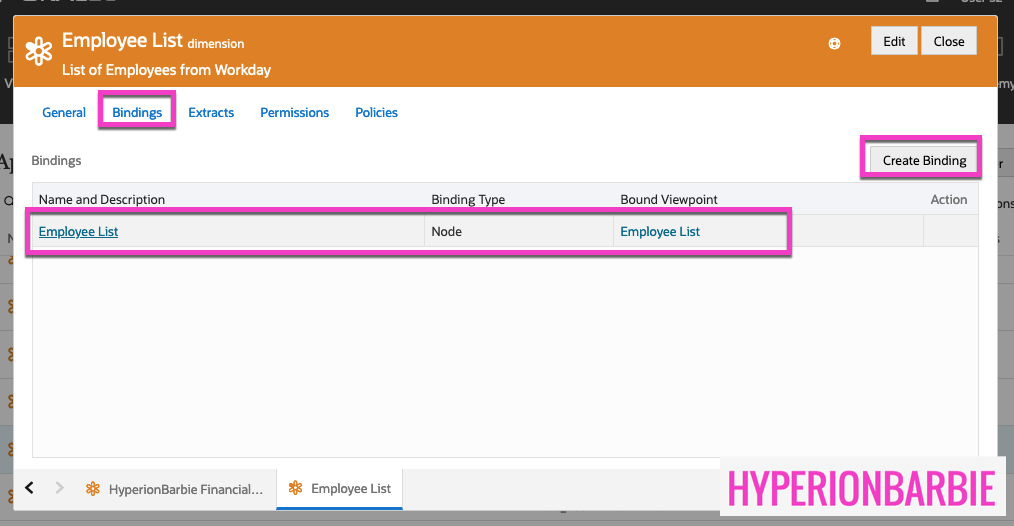
Now that the bindings are in place, my data chain is complete and I am able to navigate back to my HyperionBarbie Financials Application View and see a new Viewpoint for Employees has been created. I am able to populate my Employee List via a Request. (Note: I can create the items in my request manually or loading a request file). I’d imagine most companies would load this data in periodically from a Human Capital Management solution, like Workday, to keep the list up to date. Fortunately, Hyperion Barbie HQ has a relatively low headcount at the moment:

Reference Dimension Limits Explained
One of the caveats of using a Reference Dimension is that you cannot use the native Import or Export functionality. You are able to load data via a Request; and you can get data out via an Extract. Oracle limits these features to only core, bound dimensions that are managed within EDM and count towards licensing.
Another limitation, is that Oracle does not allow to add or adjust the properties on the Reference Dimension node type. Reference Dimensions are given a handful of properties, and you can choose to use or not use them. The properties that are delivered are part of the Core, CoreStats, Lookup namespaces.
These properties are intended to give you some placeholders for some common data attributes; like start or end dates, descriptions, or true/false attributes. The reason Oracle limits you to these 11 properties is so you aren’t managing or authoring master data for a Reference Dimension in EDM. Again, because Reference Dimensions don’t hit your record-based licensing agreement you don’t get all the fun of regular registered dimensions 🙂

Using Reference Data in a Viewpoint
Now that I have my Reference Dimension data loaded, I am able to create some properties and assign them on my Cost Center node type so I can create the association between my Cost Centers and Employees.
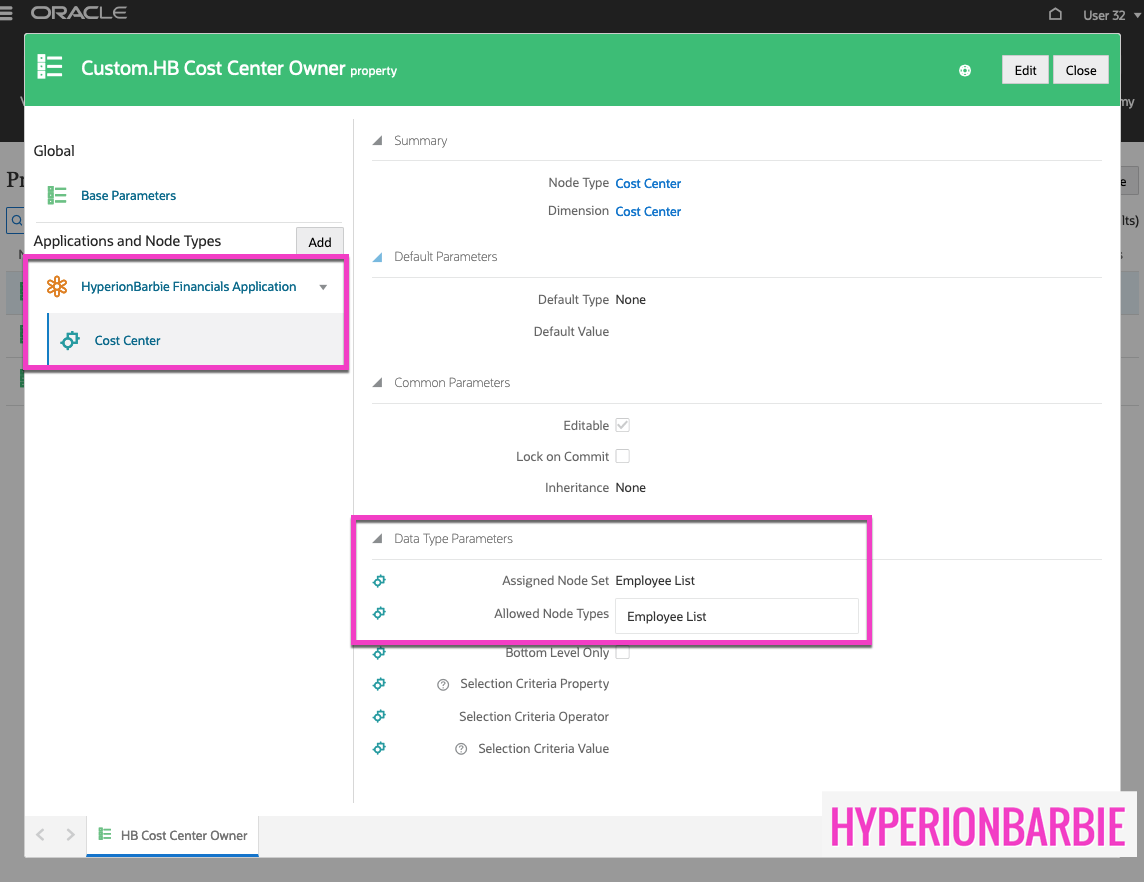
I created two properties for this: First, I created a property called HB Cost Center Owner of “Node Type” data type. This allows me to select another node in the property as a reference. You can see in the setup, once I’ve added the property to the Cost Center node type on my HyperionBarbie Financials Application, I am able to select “Employee List” Reference Dimension as the Assigned Node Set/Node Type to select:
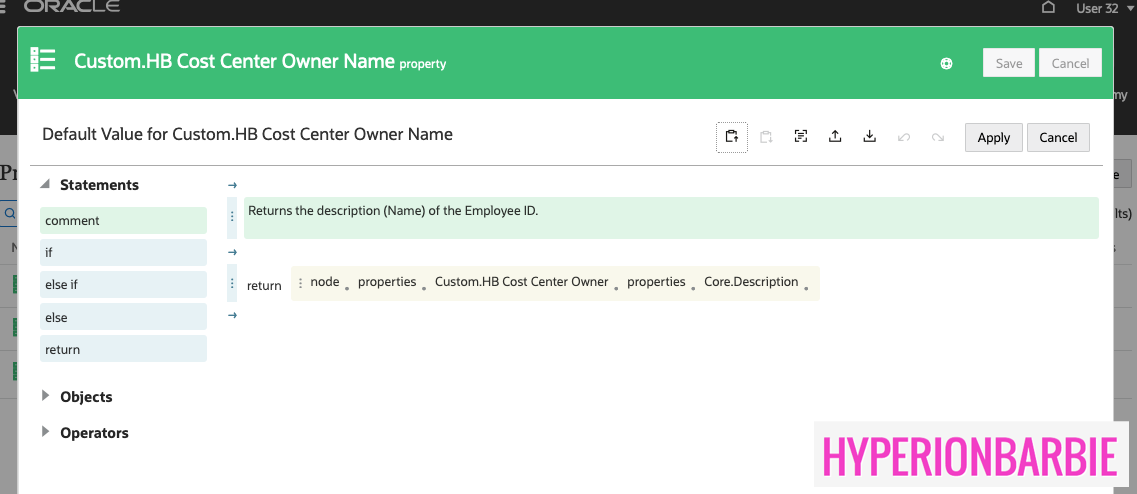
My second property, HB Cost Center Owner Name, derives the name of my Employee, based on the selection and the Reference Dimension data:

Now I’m ready to start filling in my Employees on my Cost Center viewpoint. I queue up a new request called “Assign Cost Center Owners” and find my cost center 3003, Texas.

From here, I select my HB Cost Center Owner property in the right hand panel. I can see the node icon in the right-hand side of the box that allows me to select a node from my Employee List.

And I am off to the races on making my associations Cost Centers to Cost Center Owners (Employee List) via a Reference Dimension. You can see in the screenshot below that the HB Cost Center Owner Name, Harvey Helmer, is automatically calculated for me once I select E002 from my Employee List.

And yes, I do consider Harvey Helmer, an employee of Hyperion Barbie 🙂 he spends a lot of time supervising! Thanks for reading!

 oraclebarbie.com