

The 24.06 update had over 20 new updates in Oracle EDM, and today I’m highlighting one that I find to be a very useful enhancement and allows us to define our approvals in a new way.
For those not familiar, there originally were two approval policy settings, Parallel and Serial. In the past year, Oracle’s released two more: Ownership and Management Approvals.
- Parallel: The approvers (either users or groups of users) can approve in any order
- Serial: The approvers must approve in the specified order
- Ownership: Approvers are based on the EDM User defined in the Ownership property defined on the nodes in the viewpoint (released in 23.12, requires a Users application)
- Management Approval: The approvers are defined on a parent/child structure of Users in your User application (released in 24.06, requires a Users application)
Today’s blog post is all about the last type, Management Approvals – hope you enjoy!
Step 1: Configure Users Application Type & Setup Approval Hierarchy
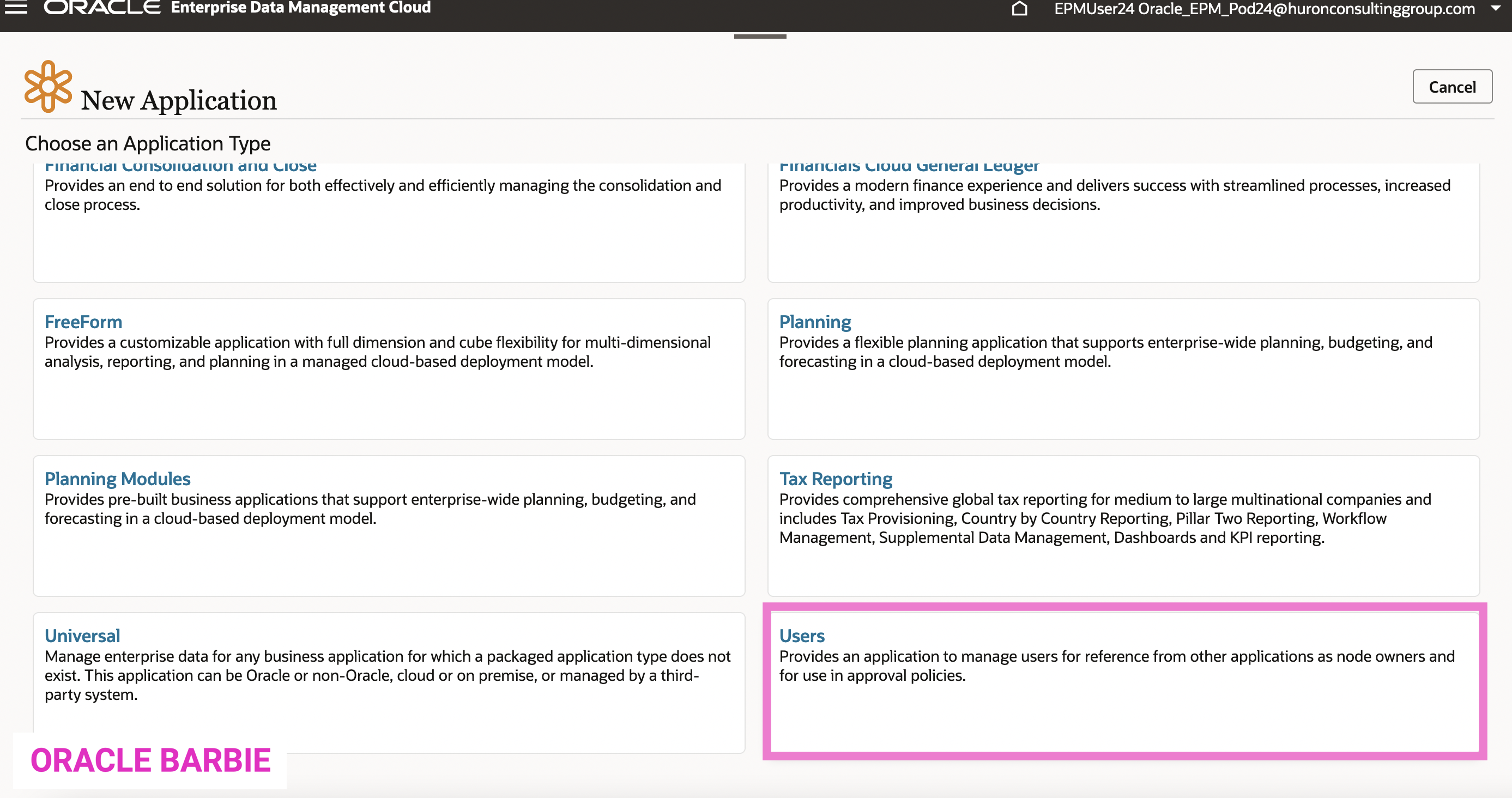
In order to leverage Management Approvals, the first thing to do is set up a Users application type. Users application type came out in the 23.12 release – and allows you to have a list of EDM Users that have different attributes, but also allows for defining a hierarchy to be used for an approval flow. You can see the Users application at the bottom of the list when registering a new Application:
From here, you can load your users data. There’s a bunch of properties that come out of the box with this application; but no properties can be added. Users applications do not count towards record count, which is why they limit the properties that can be used.
You can see there are 2 OOTB Viewpoints, “User List” which is a flat list of the users and then “User Hierarchy” which is the hierarchy you define for approval flows.

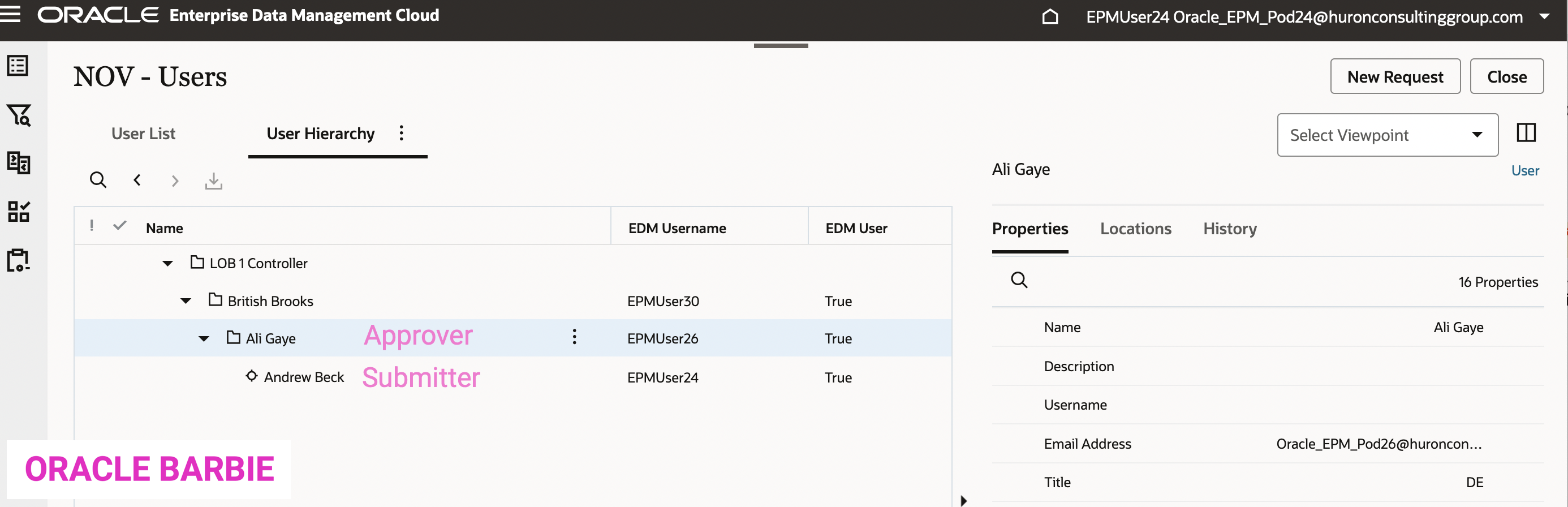
On the “User Hierarchy” tab, I’ve got a sample approval hierarchy. As an example, In this simple example, Andrew Beck (EPMUser24) reports to Ali Gaye (EPMUser26), who reports to British Brooks (EPMUser30). The Management Approvals traverses up the hierarchy from the user submitting a request until the conditions are met – more on this in a bit. So if Andrew Beck submits a request and only one approval is needed, then the approval goes to Ali Gaye. If two approvals are needed, the approval would go first to Ali Gaye and then to British Brooks.

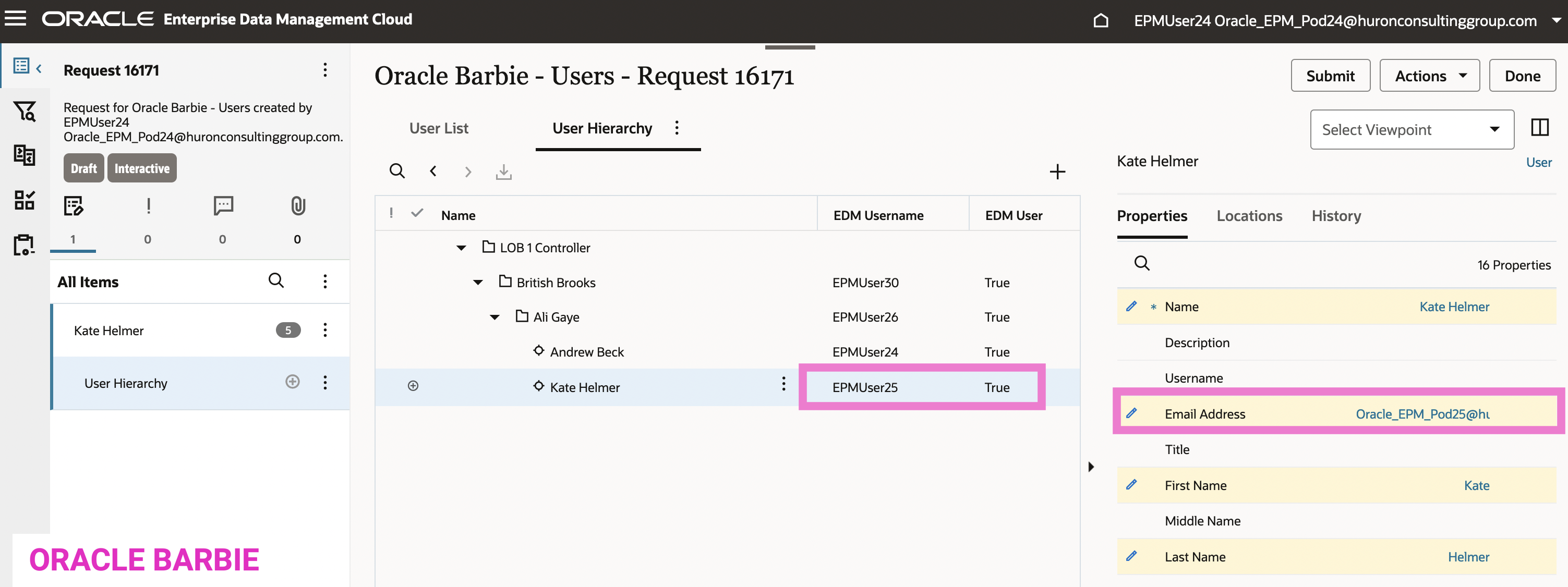
One thing I think is really cool (and took me a bit to figure out) was the EDM Username / EDM User fields. In order for the Management Approvals (or Ownership approvals) to work, the Users in your User application MUST be provisioned to EDM and have a valid email address. So you can see in the screenshot below, when I try to add myself to the hierarchy with my gmail address, the EDM User field comes in as “False” – because that is an invalid email address for this instance of EDM.

Once I change the email to a true provisioned username, it registers that as a valid EDM User, and therefore it will be acceptable for the Management Approvals usage.
For the sake of this example, I am going to be logging in as Andrew Beck (EPMUser24) and submitting a request. The next approval should go to Ali Gaye (EPMUser26).
Step 2: Configuring the Management Approval Policy
Now that I have a Users application set up, I can use it in my configuration of the Approval Policy. I’m going to be adding a Dimension-level policy to my Product dimension.

On the policy definition, I select Management Hierarchy for my Approval Method (remember, the other choices here are Parallel, Serial, and Ownership) and then select my User Hierarchy Node Set from the list (which is from the Users Application I just set up). I also am going to do a Fixed Fulfillment type which allows me to define how many approvals will be needed to satisfy the policy. I choose 1 level, so only a direct manager of the submitting user will need to approve.
The other option, Variable, allows for an expression to be added to determine whether the approval policy is satisfied (example: if this property is set to True, require 2 approvals, otherwise require 1).

You’ll also notice that you are unable to select any Users or Groups on this screen like you are able to with Parallel and Serial policies, and it reminds you that you are leveraging the Users application (on the right in above screenshot).
Step 3: Testing the Management Approval
Next step is to test and see our Management Approval in action. First, I am going to be logging in as Andrew Beck (EPMUser24) to submit my request. As a reminder, it should require one approval by my manager, Ali Gaye (EPMUser26).
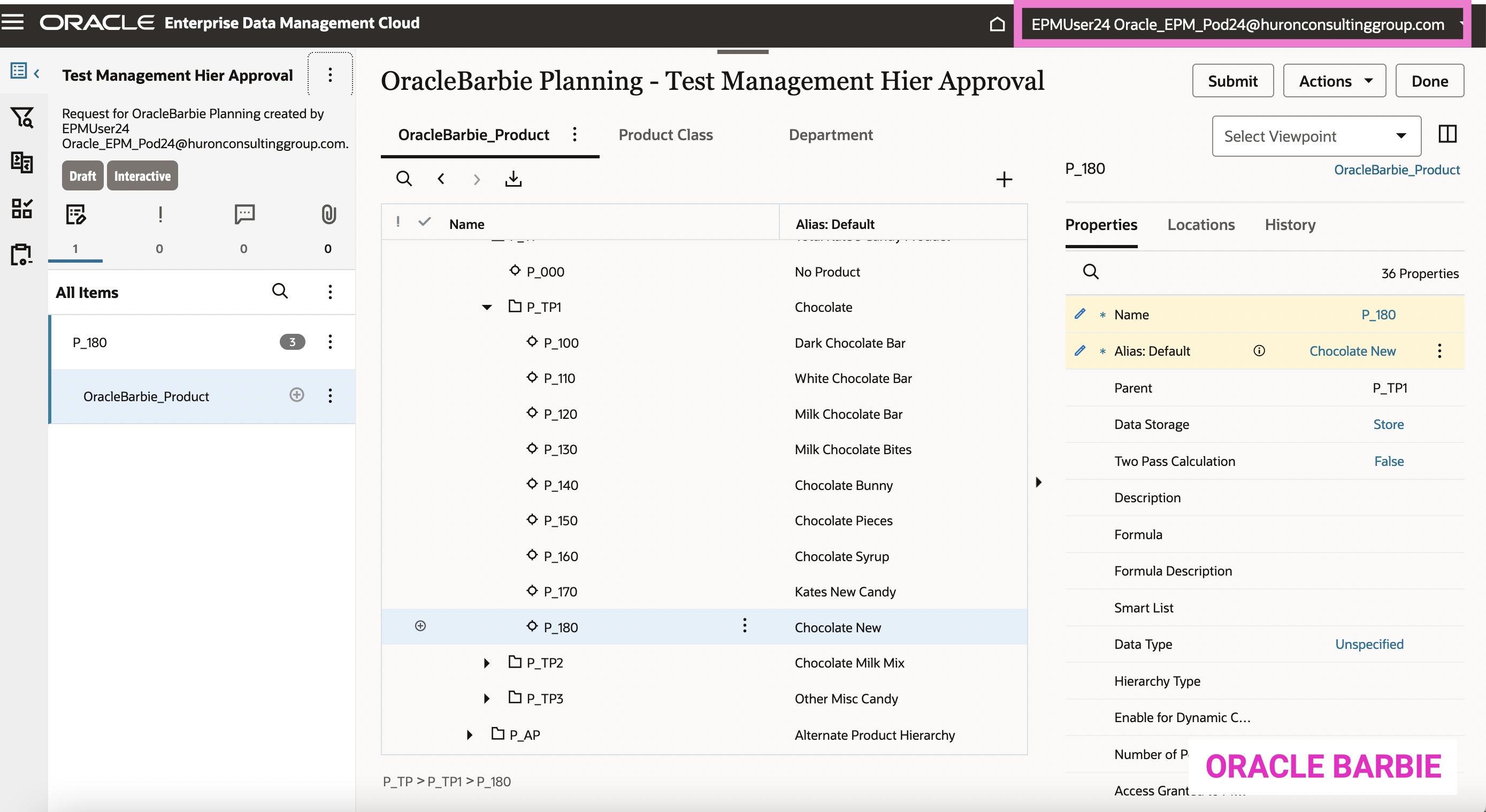
After I submit my request for a new product, I go inspect the request which is in In Flight status, awaiting approval:

You can see that the Approve Products approval policy is outstanding and only approval is needed by EPMUser26, aka Ali Gaye. Satisfying our use case!
 oraclebarbie.com
Hi EDMCS Expert,
I have the below request , any solution would be great!.
There are two types of hierarchies: primary and alternate for my Target, and merely primary for my Source. The Model After isn’t operating Since my source only contains primary, if I create a request in source to target subscription. if I create a new request in target / model after, it will create a request for an alternate hierarchy too because the alternate hierarchy is already existent.
Is there a method in edmcs to identify the parent member based on the sibling?