It’s finally here in 26D! As Oracle released AI Units earlier this summer, the first question I hear from my customers is: “But how do we know how many AI Units are being used? What if people start going crazy using Agents and we get a giant bill from Oracle?!”
Well, now we have a way to see and budget AI Units so that on a monthly basis, you have visibility to what is using AI Units and put guardrails in place to ensure that you aren’t blowing through AI Units faster than you can pay for them. (I feel like this is kind of like putting a password on your Apple Pay so your kid isn’t buying a bunch of candy crush credits without you knowing! ha!). Here’s the link to the AI Unit Budgeting and Consumption feature on Oracle’s documentation for reference.
Below is an overview of the feature and where to see AI Unit usage in your environment. Also – fun fact, Oracle increased the included monthly AI Units from 20K to 30K as of Oracle AI World 2026!
Where to find the Budgeting & Consumption Dashboard
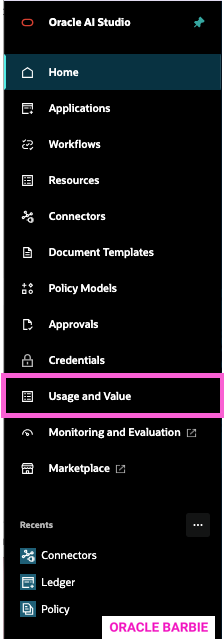
If you are in Oracle Fusion and provisioned to AI Agent Studio, it’s fairly easy to find the AI Unit Budgeting & Consumption: on the left panel, click “Usage and Value”:
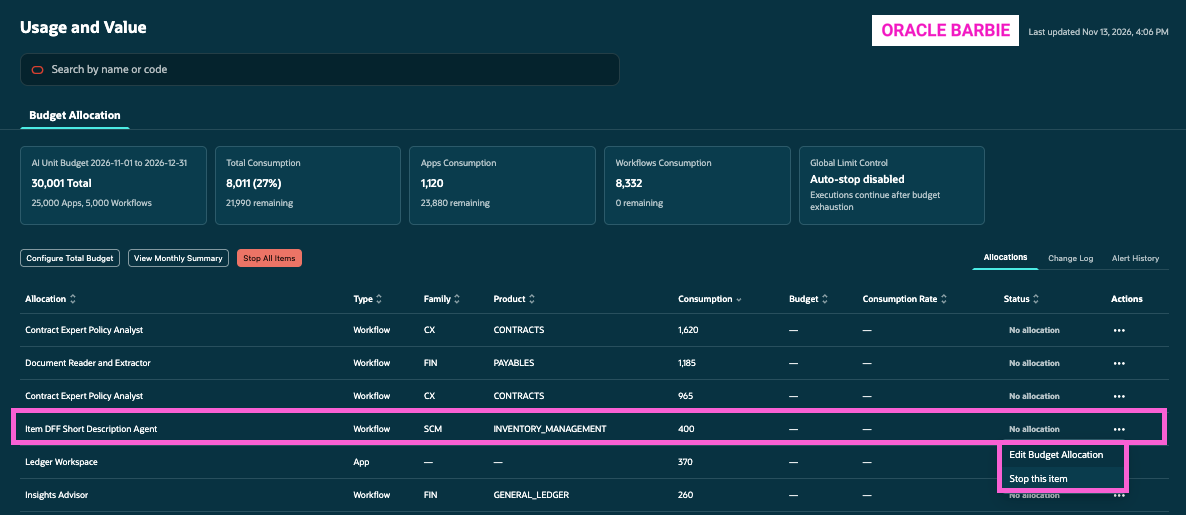
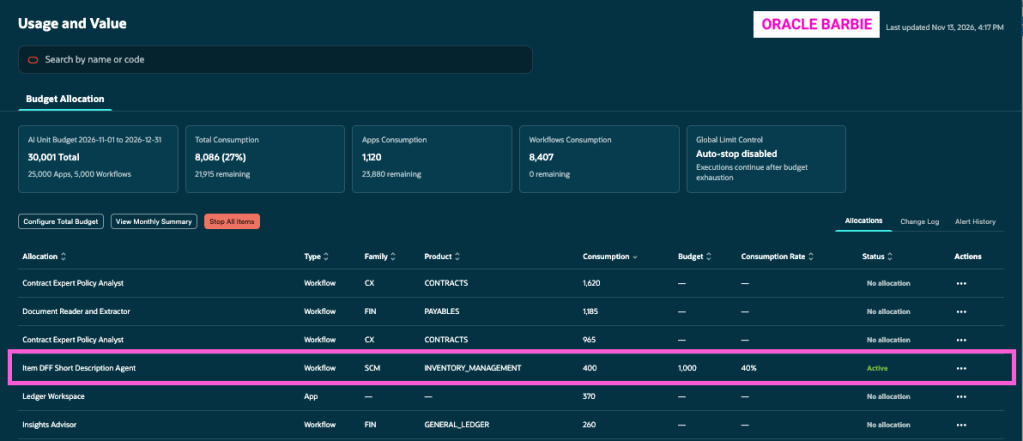
From there, the full dashboard is visible. It defaults to the “Allocations” tab. You can see the list of Allocations (Agents/Apps) and then their attributes. I sorted mine in descending order of Consumption in the below screenshot:
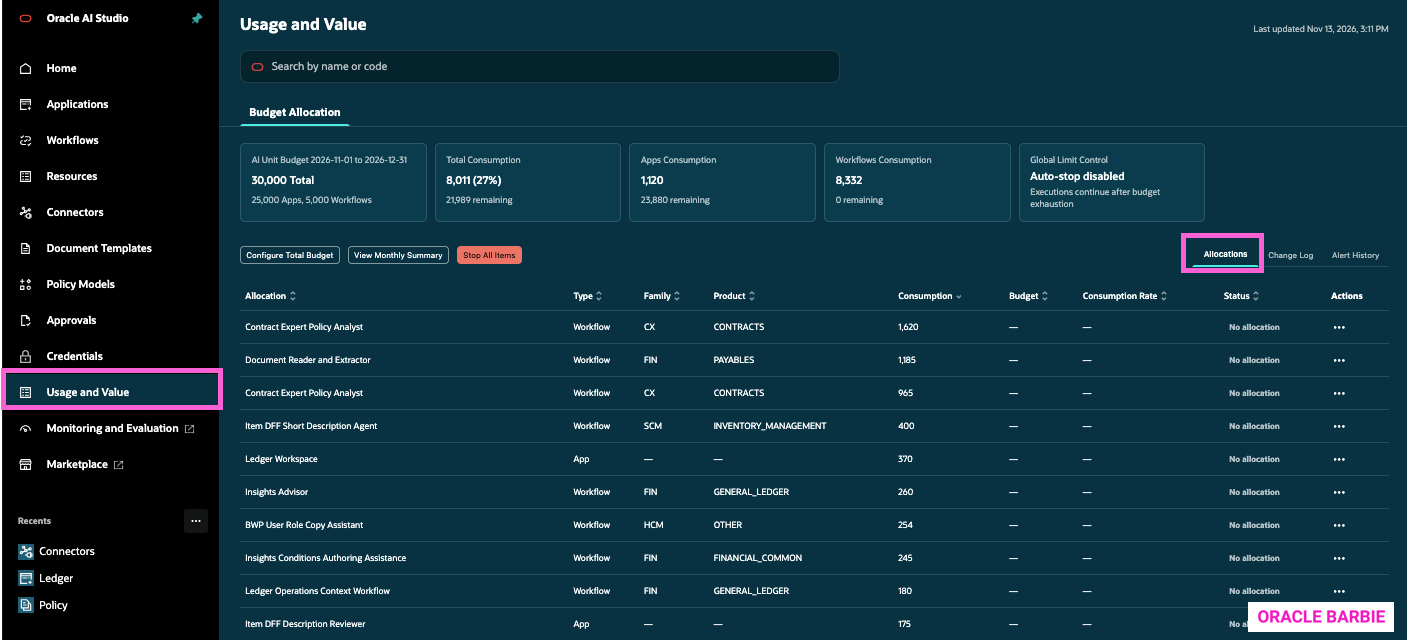
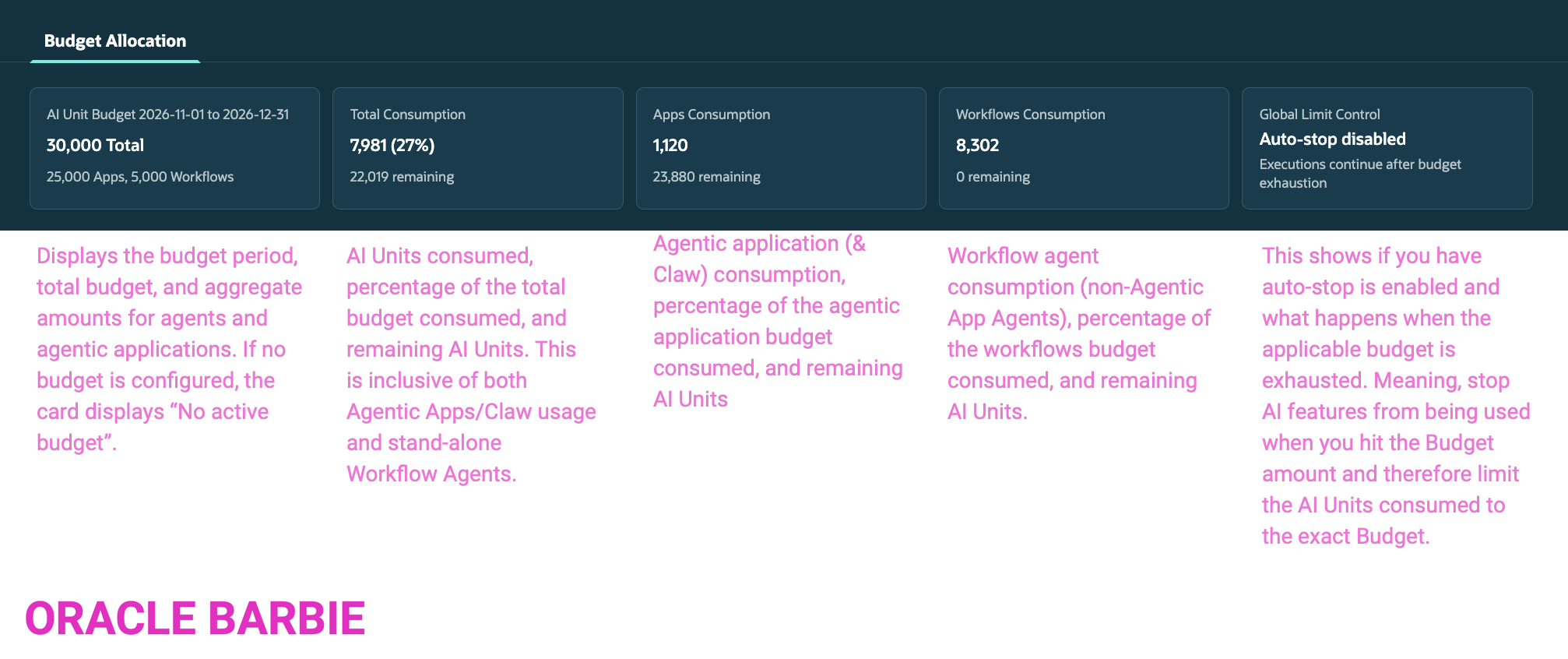
The dashboard header has the following stats:
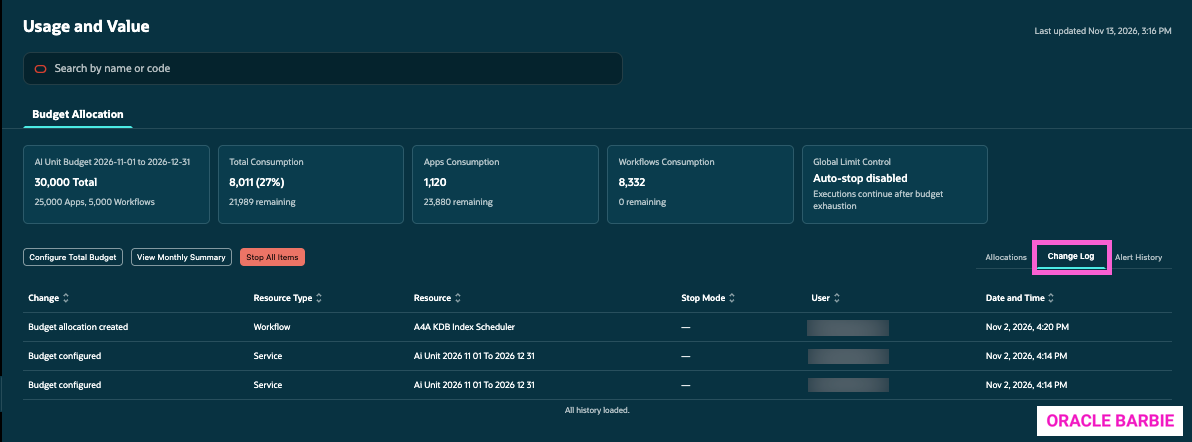
Clicking over to the Change Log, I can see what changes have occurred to the AI Unit Budget. This is going to track made each change, what was changed, the affected scope (entire service budget or specific AI Agent Workflow/App budget), who changed it, and when the change occurred.
This could be helpful for AI governance committees to review. What it does not capture (at least as of 26D) is why the budget was changed. At the Allocations (Agent/App) level, Oracle allows the capture of the reason why a budget was adjusted [Usage was too high, teams require more AI Units for a specific feature, etc.].
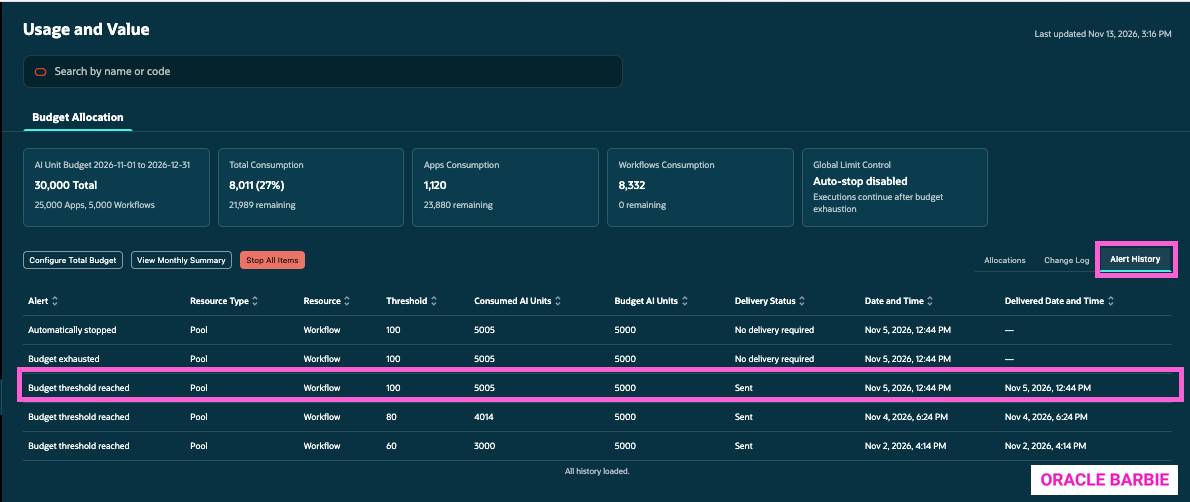
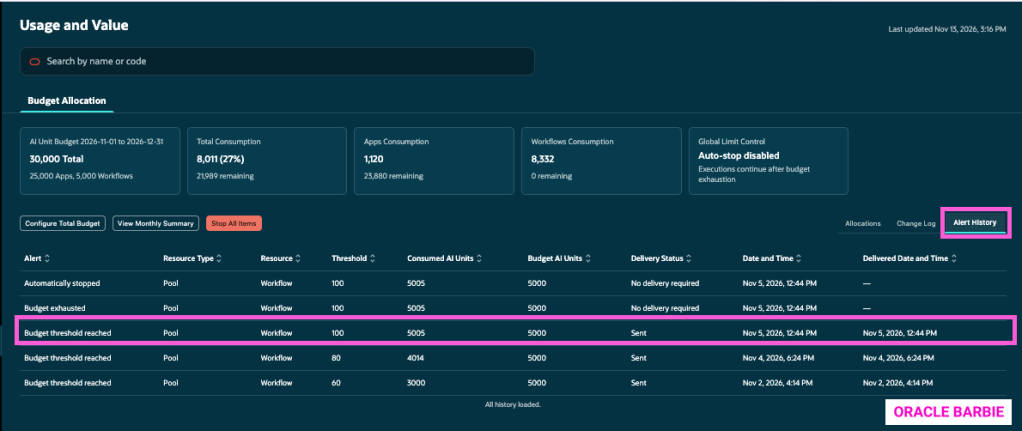
Finally, there is the Alert History tab. This gives visibility into when AI Unit alerts have been sent – I’ll show you how the setup works later in this article, but this essentially tracks when warnings were sent to designated email accounts when limits are getting close, or hit the Budgeted amount.
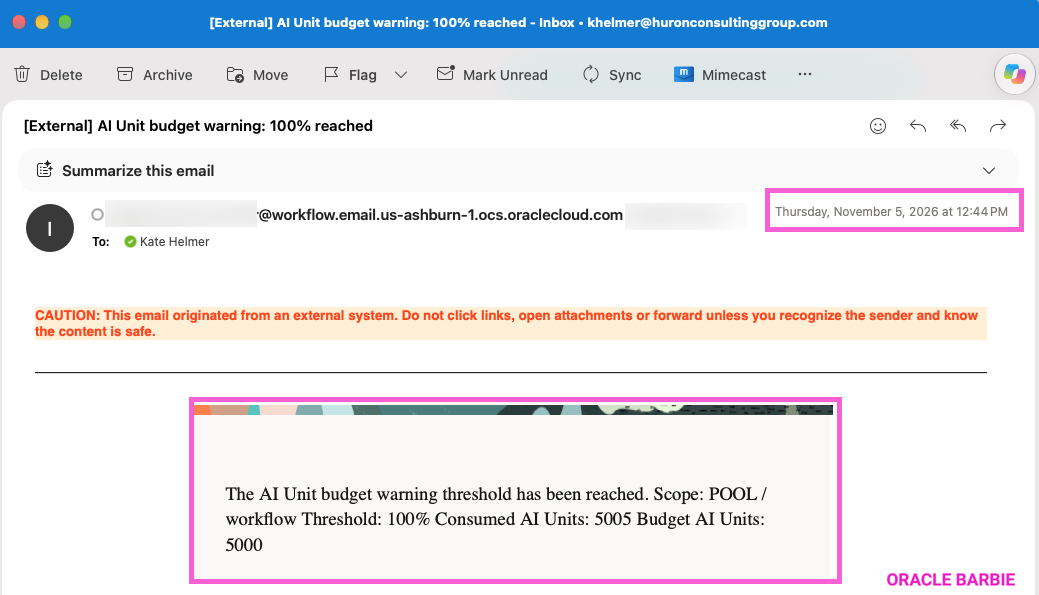
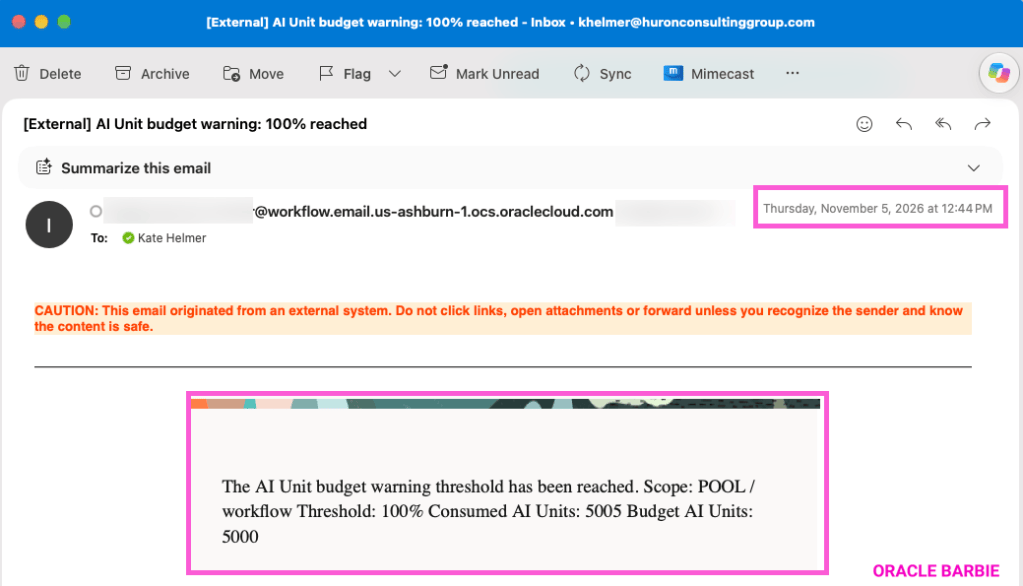
I’ve highlighted an example of when one of the thresholds had been reached for a Workflow agent (went above the Budgeted 5000). You can see in the highlighted row that an email had been sent:
Here the the corresponding email that came to my inbox:
How to Set AI Unit Budgets:
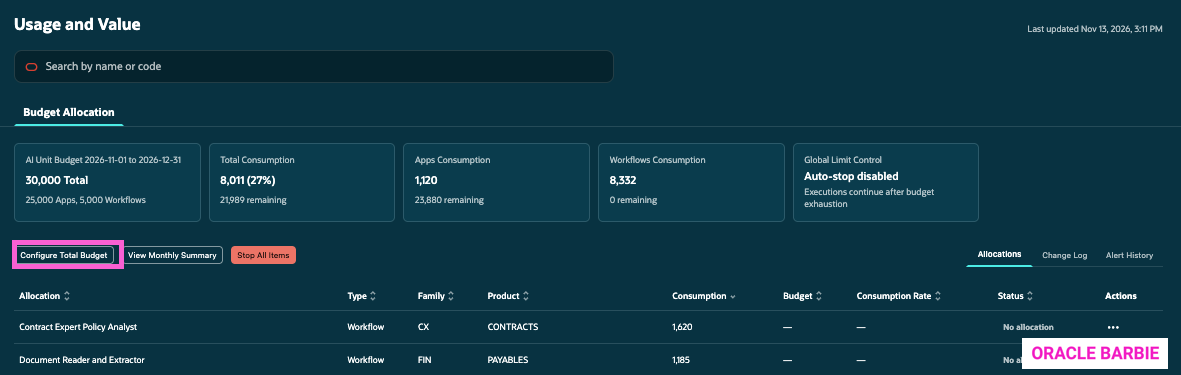
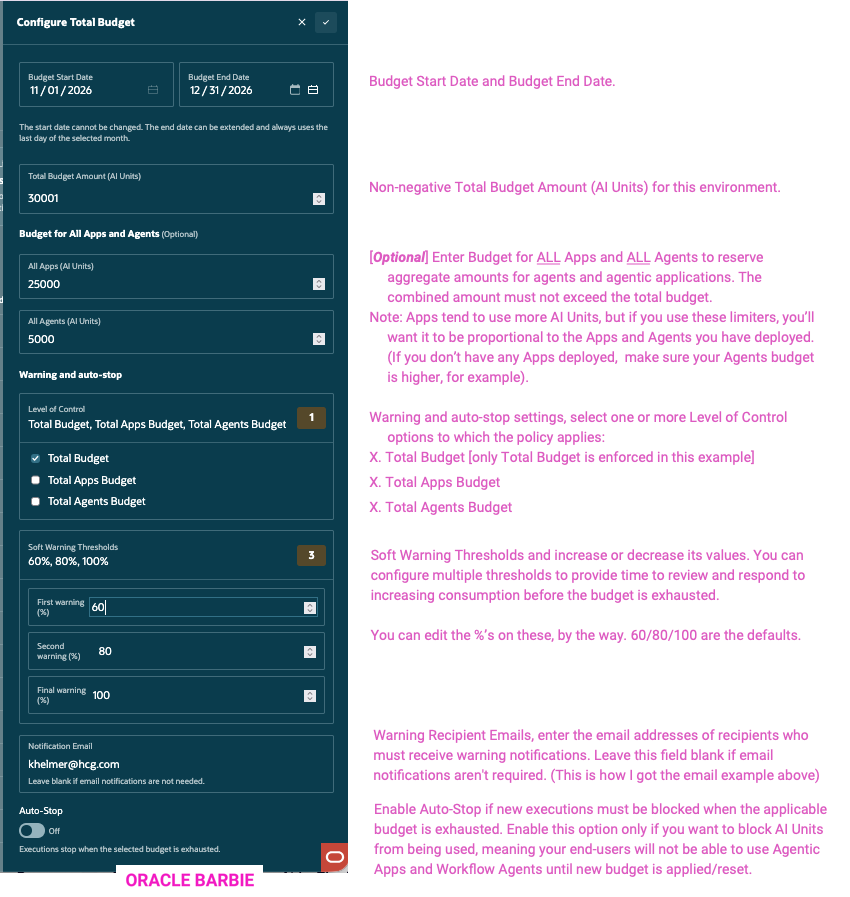
To set the AI Unit budget for the entire environment, click on the “Configure Total Budget” right under the top dashboard:
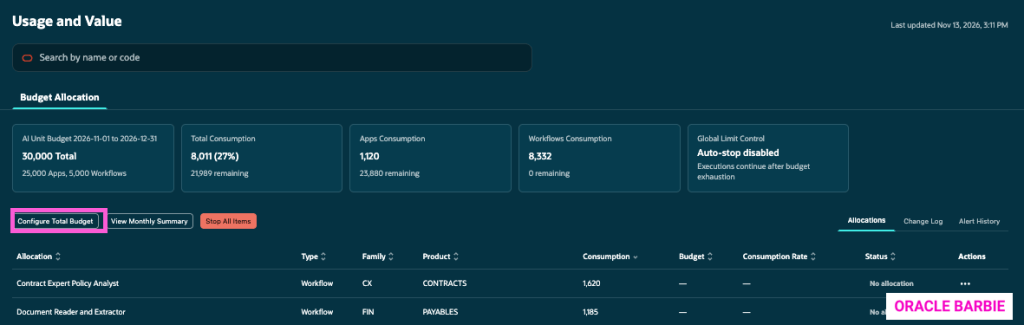
Remember, this is for the unique instance you are in. AI Units are charged in each environment that you use them; so you’ll want to ensure you delegate AI Units across your entire fleet of Fusion instances. You’ll want more for Production and Dev environments, and a little less for Test, and probably very few in a DR.
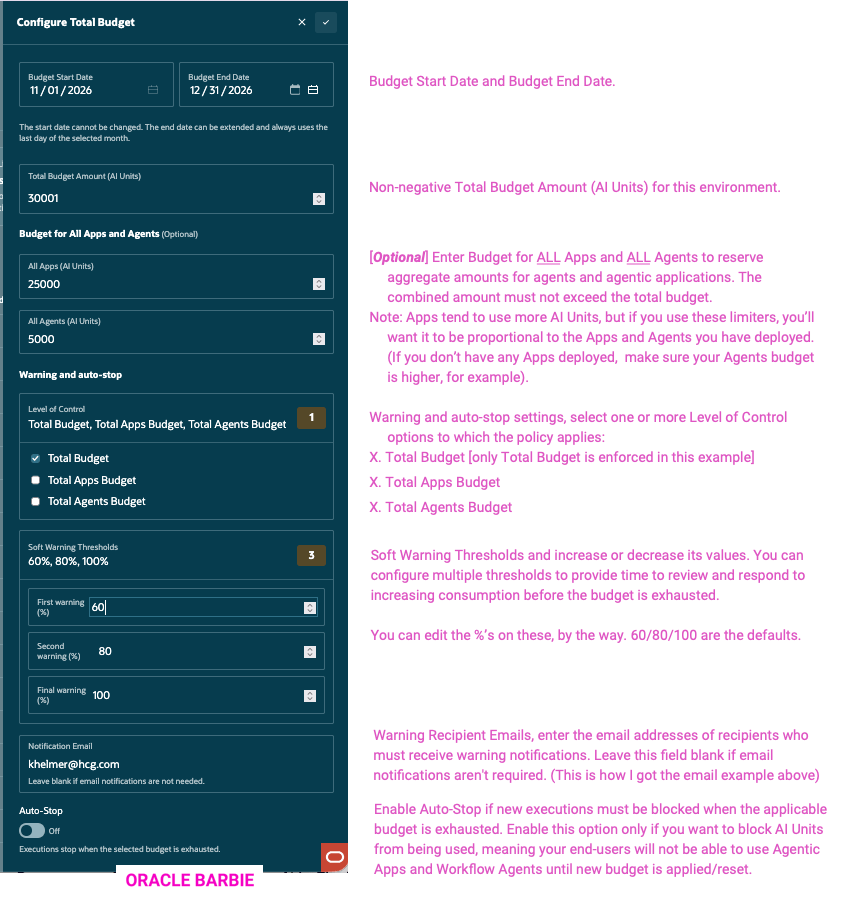
Click the checkbox in the top right corner to save.
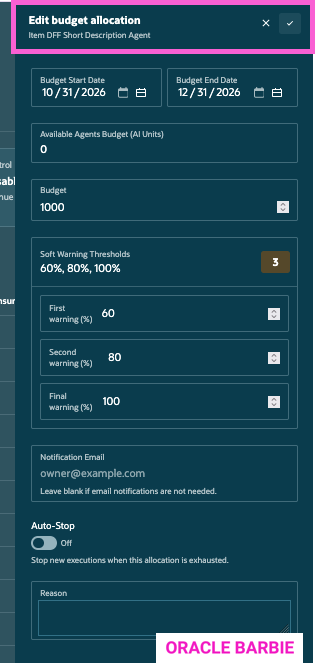
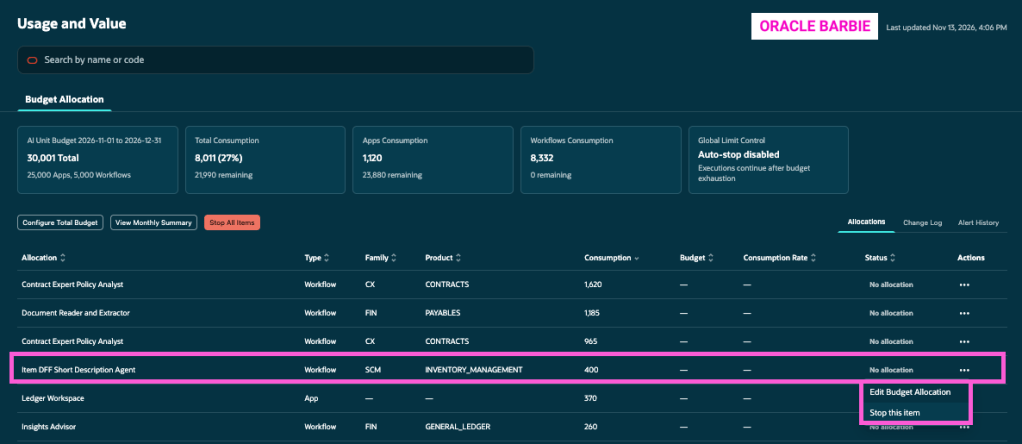
You can also create Budgets at the Agentic App and Workflow Agent level. Click the “…” next to one of the Allocation lines (Agentic App/Workflow Agent). In my example, it’s the Item DFF Short Description Agent.
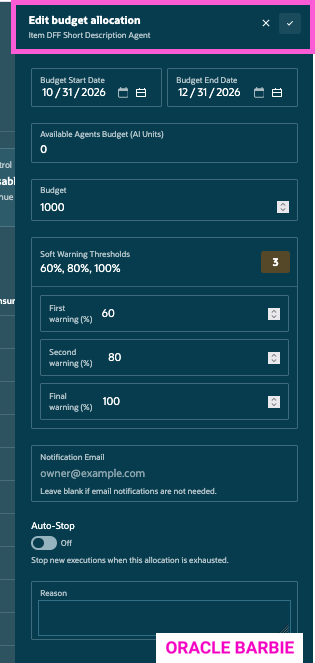
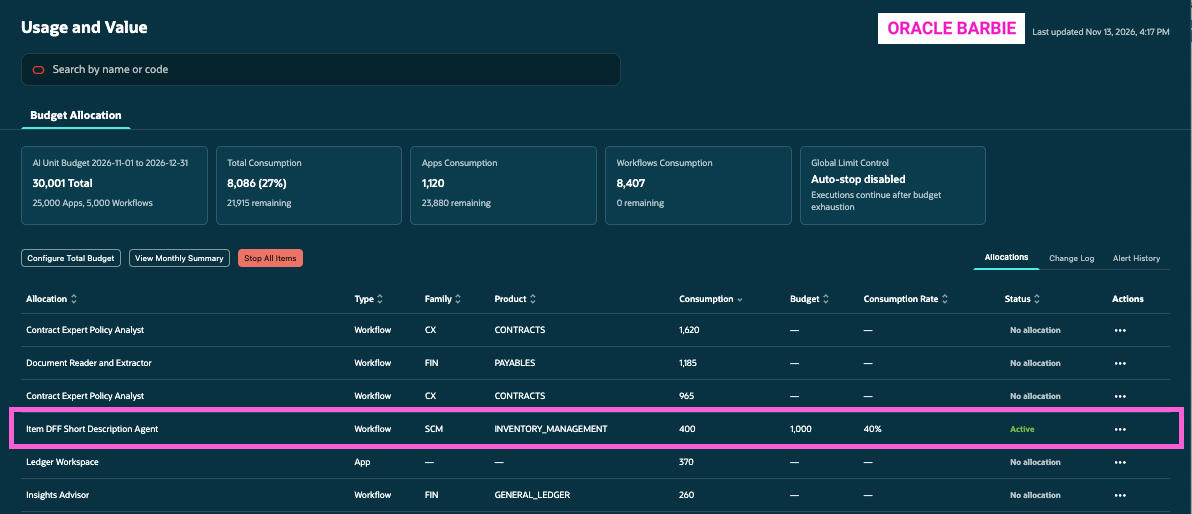
This level, you can add a “Reason” to why the Budget is being changed for the Allocation item. This is what it looks like after saving the Budget:
Viewing Monthly Summary of AI Unit Usage
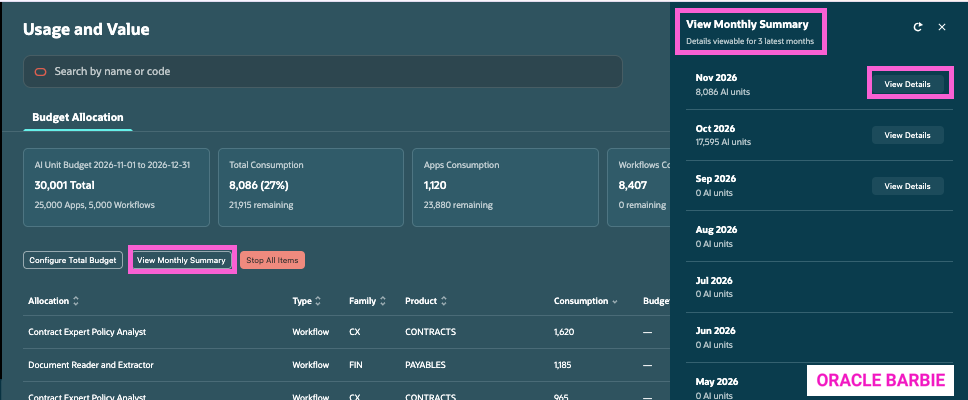
As an administrator and governing body over AI Unit usage, it is also good practice to delve into usage details and trends so you can be proactive about setting budgets and alerting your leadership if AI Unit usage is increasing (or decreasing). The Monthly Summary reports are a great way to gain insights.
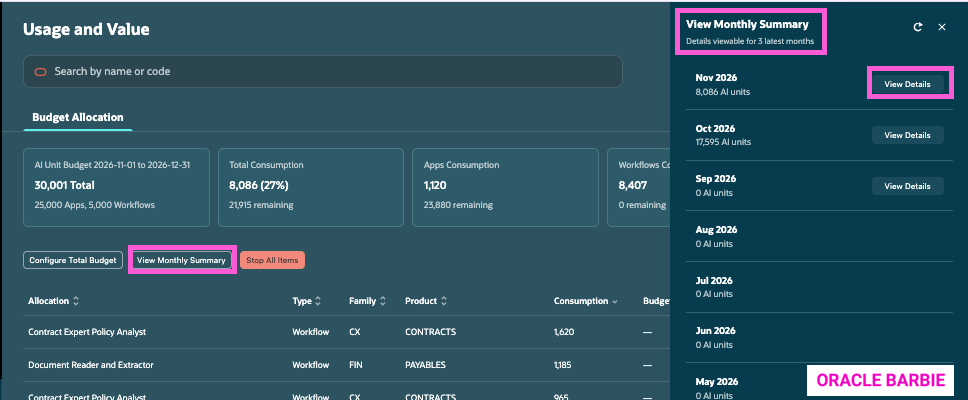
If you click View Monthly Summary a panel opens on the right with monthly AI Unit totals. You can see that Oracle officially started tracking this in September 2026.
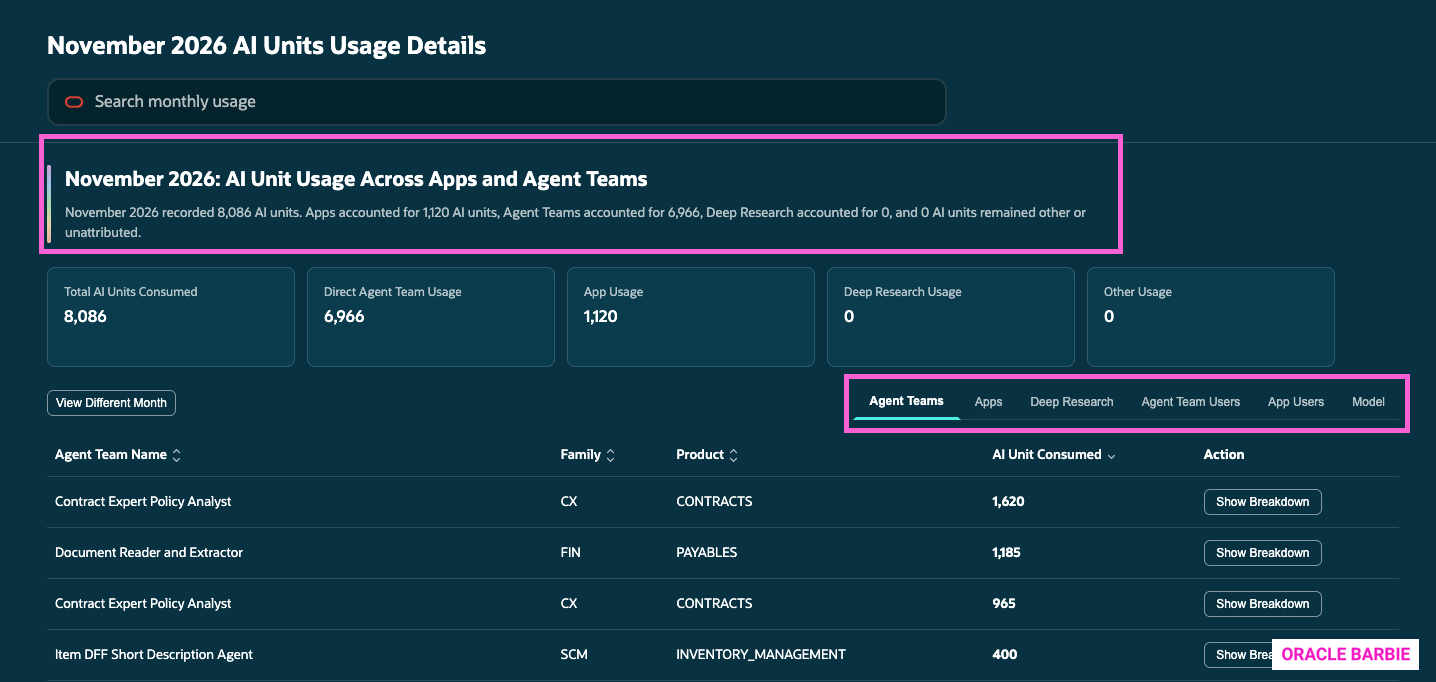
Drilling in further, View Details you can see all the agents and additional details about the AI Units consumed during the specified month.
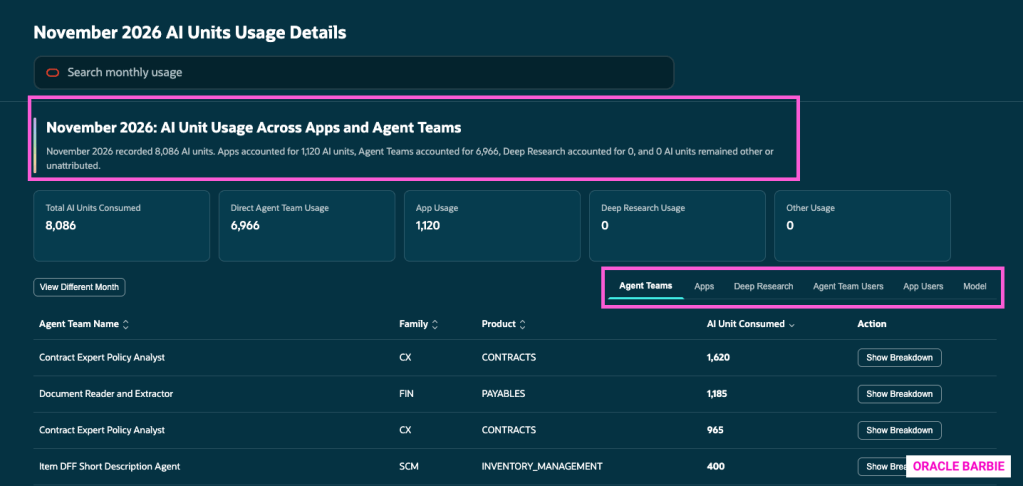
One critique – don’t see anywhere to download these details to a report or xlsx. Hopefully Oracle will provide that functionality in a future release!